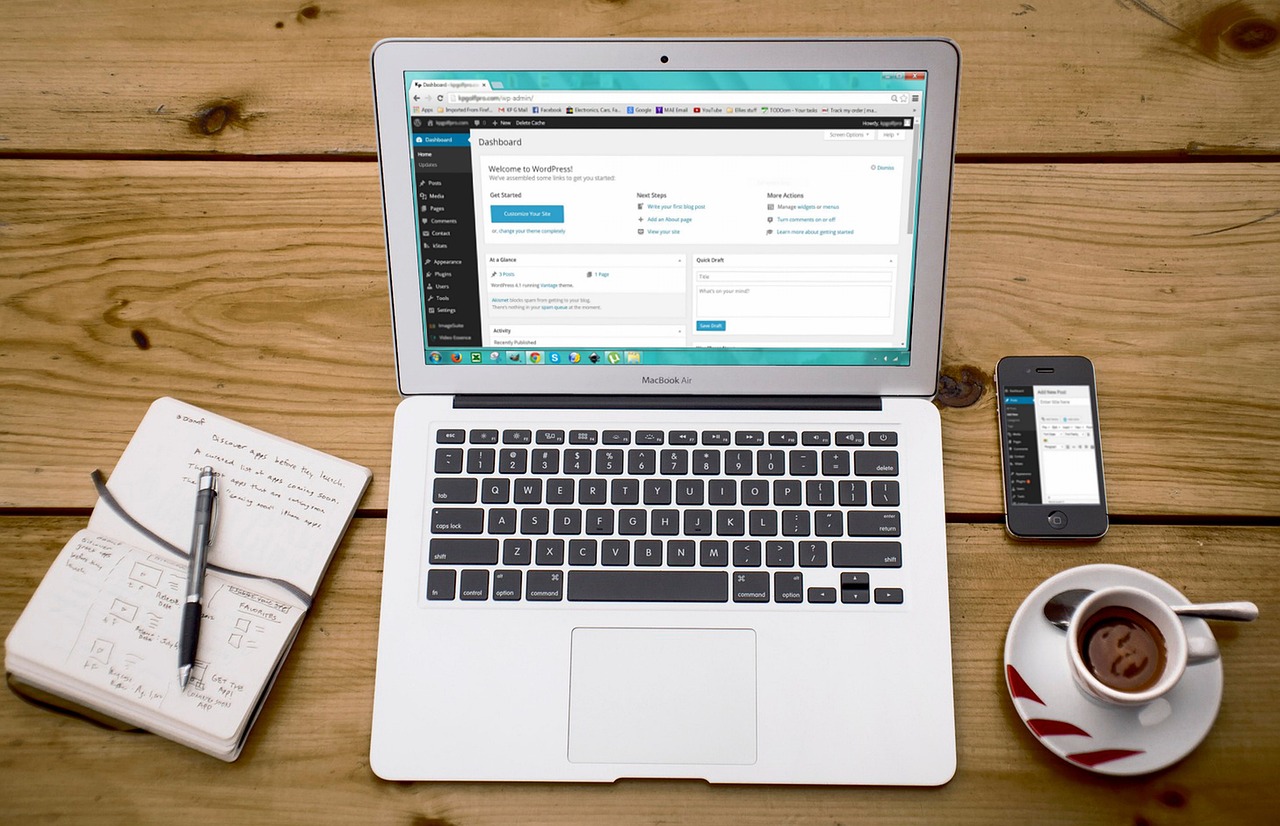
A live view sells a place better than any photo: guests check the snow, the waves or the sunset before they book. This guide shows the five practical ways to embed a live camera on a website, with code you can copy, how to make the player responsive, fast and privacy-friendly, and how to mark it up so search engines understand it is live. It also explains why “just paste the camera’s address” doesn’t work.
Which embed method fits your camera?
Why you can’t embed the camera directly
An IP camera normally offers its video as RTSP (rtsp://192.168.1.50:554/stream1). No web browser plays RTSP, and the address only works inside your network anyway. To make it reachable you would have to open a port on your router, which invites attackers and puts your camera at risk of ending up on an “insecure cameras” list. The browser-friendly formats are HLS (and DASH), WebRTC, and players from streaming platforms. Background in RTSP explained and how live streaming works.
Method 1: YouTube embed (recommended)
Stream the camera to YouTube (see our step-by-step guide), then on the live video choose Share → Embed and copy the code. YouTube’s help page explains that changing the domain from youtube.com to youtube-nocookie.com turns on privacy-enhanced mode, so that views in the embed don’t personalize the viewer’s YouTube experience.
<div class="cam">
  <iframe src="https://www.youtube-nocookie.com/embed/VIDEO_ID"
    title="Live camera: Example Bay harbor"
    loading="lazy" allow="autoplay; encrypted-media; picture-in-picture; fullscreen"
    allowfullscreen></iframe>
</div>
For 24/7 cameras, the video ID can change whenever YouTube starts a new broadcast, and your embed then shows “video unavailable”. A channel-based live embed address, https://www.youtube-nocookie.com/embed/live_stream?channel=YOUR_CHANNEL_ID, shows whatever the channel is streaming live. It works best when the channel runs only one live stream; with several, use a separate channel per camera or update the video ID when it changes.
YouTube’s player rules: the player must be at least 200 × 200 pixels, and YouTube recommends at least 480 × 270 for 16:9 video. Don’t put anything over the player, and don’t hide YouTube’s branding.
Method 2: Windy, Angelcam and other platform players
If your camera is on Windy (see adding a webcam to Windy), Windy provides an embeddable timelapse player for it. Angelcam, IPCamLive and Ivideon offer public embed players for cameras on their plans, usually under a “Share” or “Embed” menu, which you paste as an iframe like the YouTube code above. The platform carries the video traffic, so your web host does nothing heavy. Keep the platform’s branding and follow its terms; some plans limit embedding or viewer numbers.
Method 3: your own HLS stream with hls.js
HLS (HTTP Live Streaming) cuts video into short files served over ordinary HTTPS. Safari plays HLS natively; other browsers play it with the free hls.js library. You need a server or service that produces the .m3u8 playlist and segments (a media server, a cloud streaming service or some cameras’ own HLS output through a relay), served over HTTPS with cross-origin access (CORS) allowed for your website.
<video id="cam" controls muted playsinline poster="/cam/poster.jpg"></video>
<script src="https://cdnjs.cloudflare.com/ajax/libs/hls.js/1.5.13/hls.min.js"></script>
<script>
  const v = document.getElementById('cam'), src = 'https://video.example.com/harbor/index.m3u8';
  if (v.canPlayType('application/vnd.apple.mpegurl')) { v.src = src; }
  else if (window.Hls && Hls.isSupported()) { const h = new Hls(); h.loadSource(src); h.attachMedia(v); }
</script>
The catch is bandwidth: every viewer downloads the stream from your server. At 3 Mbps, 100 viewers watching for an hour is about 135 GB. YouTube does that for free, which is why most public webcams use it. Our bitrate and data calculator helps you estimate costs.
Method 4: a refreshing still image
For a 4G or solar camera, a still image every few minutes is often the smart choice. Set the camera to upload a JPEG to your website on a schedule (always the same file name), then show it with a little script that reloads it:
<img id="snap" src="/cam/harbor.jpg" alt="Live view of Example Bay harbor" width="1280" height="720">
<p>Updated every 5 minutes.</p>
<script>
  setInterval(() => {
    document.getElementById('snap').src = '/cam/harbor.jpg?t=' + Date.now();
  }, 300000);
</script>
Refresh no faster than the camera uploads, and show the time of the image so visitors know how fresh it is. The image also works as the poster frame for a video player and as a thumbnail for search engines.
Method 5: WordPress and website builders
In WordPress, pasting a YouTube URL on its own line in the block editor creates an embed automatically (oEmbed). For the privacy-enhanced domain or a channel live embed, use a Custom HTML block with the iframe code. Squarespace, Wix and most builders have an “Embed” or “Code” block that accepts the same iframe.
The methods side by side
| Method | Live video? | Cost to you | Effort | Works with |
|---|---|---|---|---|
| YouTube embed | Yes (a few seconds behind) | Free | Low | Any camera via RTMP |
| Windy player | Timelapse and latest image | Free | Low | Outdoor weather cams |
| Angelcam / IPCamLive / Ivideon | Yes | Monthly or yearly plan | Low | Most IP cameras |
| Own HLS + hls.js | Yes | Server and bandwidth | High | Media server or service |
| Refreshing image | No (every few minutes) | Almost nothing | Low | Cameras with scheduled upload |
Make it responsive, fast and polite
- Responsive 16:9: wrap the iframe and give it full width with a fixed aspect ratio, for example
.cam iframe{width:100%;aspect-ratio:16/9;height:auto;border:0}. - Click to load: an iframe from YouTube loads a lot of script. Show a poster image with a play button and only insert the iframe when the visitor clicks. Pages load faster, and in the EU it lets you wait for consent before any third-party player loads.
- Lazy loading: add
loading="lazy"so players further down the page load only when visitors scroll to them. - Autoplay politely: browsers generally only allow autoplay when the video is muted. Autoplay at most one camera per page, and only if it is the reason for the page.
- Tell visitors what they see: a caption with the place, the direction the camera faces, the local time zone and how often it updates.
- Accessibility: give the iframe a meaningful
title, and the image a realalttext.
Several cameras on one page
Resorts and towns often have three or four cameras. Show them as a grid of poster images (the latest still frame of each) with the camera’s name and direction, and let visitors click one to load its player in a larger frame. Only one player then runs at a time, the page stays fast on phones, and nobody downloads four video streams at once. LiveLocation follows the same idea: a click-to-load poster first, and the player only when you ask for it.
Troubleshooting embeds
- “Video unavailable” or “Playback on other websites has been disabled”: embedding is switched off for that video or stream in YouTube Studio. Turn on “Allow embedding” in the stream’s settings.
- The player is a tiny box or overflows on phones: remove fixed width and height attributes and use the responsive CSS above.
- HLS plays in Safari but not Chrome: hls.js isn’t loading, or the server doesn’t send the CORS header for your domain.
- A still image never changes: the browser or a caching plugin keeps the old file. Add the time stamp parameter as in the example and exclude the image from page caching.
- Mixed-content warnings: every player and image must load over https://, never http://.
Help search engines see it is live
Google supports structured data for videos, and a VideoObject with a BroadcastEvent marked isLiveBroadcast: true lets Google show a LIVE badge for live streams. Only use it while the stream really is live, and don’t mark refreshing images or timelapses as live. Add the place name and coordinates in text near the player; it helps both people and search engines.
Respect other people’s cameras
Only embed cameras you own, or cameras whose owners provide an embed (for example YouTube streams with embedding enabled, or a provider’s official widget). Some well-known webcam networks forbid embedding or framing their images without written permission. Never copy a camera’s stream URL from another website’s source code. That is how LiveLocation works too: we play each camera with its owner’s official player, and never record or re-host it (see How we choose cameras).
Do these next
- Stream your camera to YouTube if it isn’t yet.
- Paste the embed with youtube-nocookie.com, a click-to-load poster and a caption.
- Submit it to LiveLocation to reach travelers on the map.
Questions people ask
How do I embed a live camera on my website?
Stream the camera to YouTube and paste YouTube’s embed code, using youtube-nocookie.com for privacy-enhanced mode. Platform players from Windy, Angelcam, IPCamLive or Ivideon also work, as does HLS with hls.js or a refreshing still image.
Can I embed an RTSP camera stream in a web page?
No. Browsers do not play RTSP, and opening your camera to the internet is a security risk. Send the stream to YouTube or a relay service, which gives you a browser-friendly player.
How do I keep a YouTube 24/7 embed from breaking?
The video ID can change when a new broadcast starts. A channel live embed (embed/live_stream?channel=CHANNEL_ID) shows whatever that channel is streaming live, which works best with one stream per channel.
Can a live camera autoplay on my website?
Browsers generally allow autoplay only when the video is muted. Autoplay at most one player per page, or use a click-to-load poster image for speed and privacy.
Does embedding a YouTube live stream cost anything?
No. YouTube carries the video traffic for free, which is why most public webcams use it. Hosting your own HLS stream means paying for bandwidth for every viewer.
Sources
- YouTube Help: Embed videos and playlists (privacy-enhanced mode) (checked 2026-10-07)
- YouTube IFrame Player: player parameters and minimum size (checked 2026-10-07)
- Google Search Central: Video structured data (BroadcastEvent for live streams) (checked 2026-10-07)
- hls.js (video-dev) on GitHub (checked 2026-10-07)
- MDN Web Docs: Cross-Origin Resource Sharing (CORS) (checked 2026-10-07)
- Chrome for Developers: Autoplay policy in Chrome (checked 2026-10-07)
Last reviewed October 7, 2026 by the LiveLocation team. General information, not legal or electrical advice.