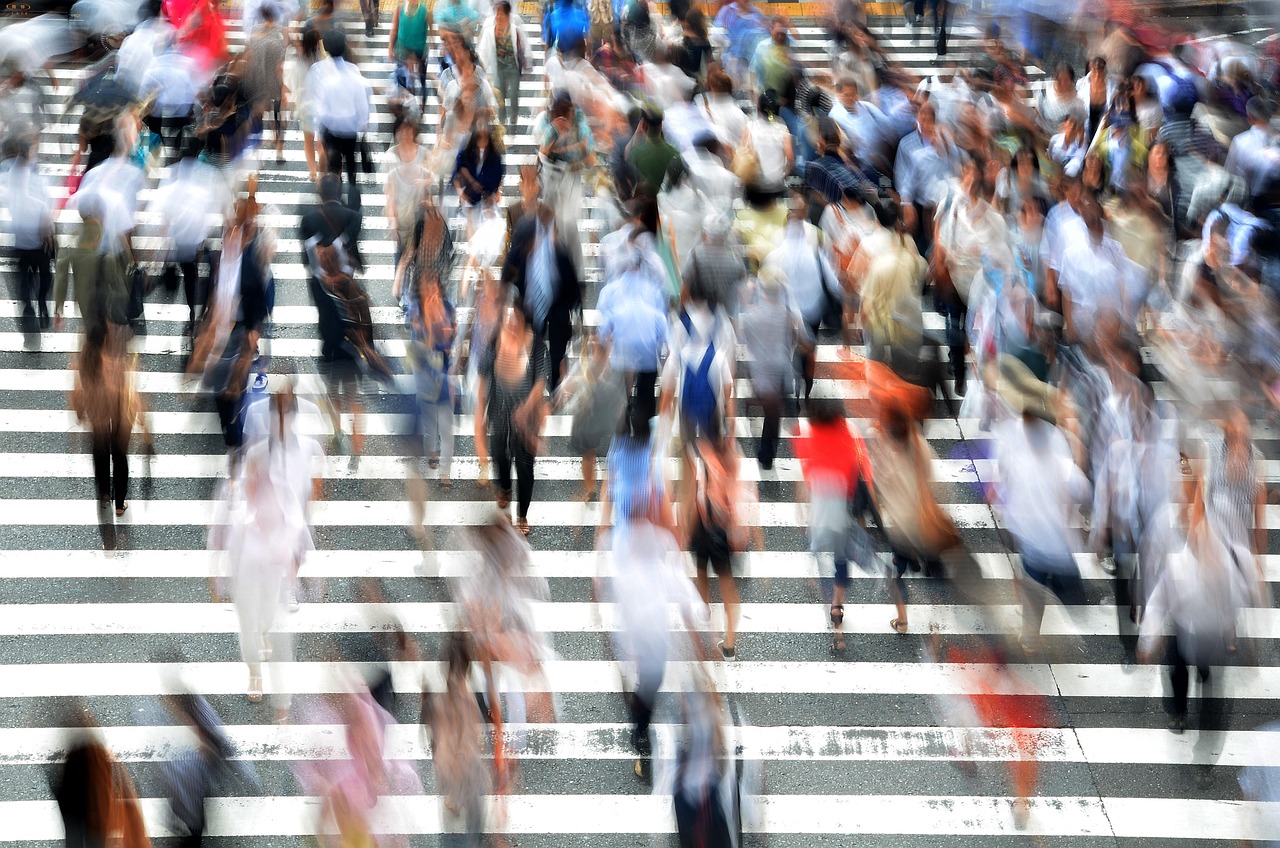
“Privacy by design” is a legal duty in Europe (GDPR Article 25) and good practice everywhere. For a public webcam it means the privacy decisions are made when you choose the camera and the mounting spot, not after the first complaint. This page turns that principle into specific settings: height and angle, lens and resolution, privacy masks, PTZ presets, audio, overlays, recording and what to tell people. It is written for hotels, ski areas, marinas, towns, beach bars and anyone who wants their camera on our map.
The six design rules
| Rule | What to do | Why it matters |
|---|---|---|
| 1. Aim at the view | Frame the sea, slope, skyline, harbor or square from above; keep the horizon in the picture | Viewers come for the place; people stay small |
| 2. Keep people unrecognizable | Plan pixel density so that people in the scene fall in the “detect” or “observe” range, not “recognize” | Unidentifiable people are not personal data under the GDPR |
| 3. Mask private areas | Use privacy-mask zones over windows, balconies, gardens, doors, pools, changing areas | Required wherever the law protects private spaces; prevents the worst complaints |
| 4. No zoom for strangers | Fixed lens, or PTZ locked to a few wide presets; no viewer control | The EDPB lists zoom and unlimited camera movement as functions to switch off when not needed |
| 5. Audio off | Disable the microphone in the camera and remove the audio track in the encoder | Recording conversations is illegal without consent in many US states and highly intrusive in Europe |
| 6. Don’t keep what you don’t need | Stream live without recording, or keep a short automatic retention; check your platform’s archive setting | Storage limitation (GDPR Article 5); less risk if anything leaks |
Rule 1: height and angle
The single most effective privacy setting is where you put the camera. A camera mounted 8 to 15 meters up, on a rooftop, mast or ski station, looking out over a beach or town, sees the tops of heads at a distance. The same camera at 2.5 meters on a wall by the entrance sees faces at arm’s length. A good public webcam frame is about one-third sky, two-thirds landscape, with the nearest walking area well in the distance.
- Look out, not down. A steep downward angle onto a terrace or sidewalk brings people close. A gentler angle toward the horizon pushes them away.
- Keep a buffer. Place the camera so that the closest point where people can stand is far from the lens: across the water, beyond the beach, below the slope.
- Avoid looking into buildings. Hotel rooms, apartments and offices across the street are the most common privacy problem with city webcams. Re-aim or mask.
See where to mount a camera for field-of-view and sun angles.
Rule 2: resolution and pixel density
Security cameras are planned with pixel density: how many pixels of the image fall across one meter of the scene at a given distance. The CCTV performance standard IEC 62676-4 uses four levels, known as DORI: detect (25 pixels per meter, enough to see that someone is there), observe (62.5 px/m, enough to see what people are doing), recognize (125 px/m, enough to recognize someone you know) and identify (250 px/m, enough to identify a stranger). A security camera aims for “identify”. A privacy-friendly webcam aims for the opposite: people should stay in detect or observe.
Pixel density depends on three things: the camera’s horizontal resolution, the lens’s horizontal field of view and the distance. For a lens with a 90-degree view, the scene is about twice as wide as it is far away, so density in px/m is roughly horizontal pixels divided by twice the distance.
The chart shows why a 4K webcam needs more thought than a 1080p one: people up to about 15 meters away can be recognizable. That doesn’t mean you must stream in low resolution. A 4K camera looking over a bay, with the nearest beach 60 meters away, keeps people small and gives viewers a stunning picture. Plan the distance, not just the resolution. Also remember that a narrower lens (or zooming in) concentrates pixels: a 30-degree lens has roughly three times the density of a 90-degree one at the same distance.
Rule 3: privacy masks
Nearly every IP camera has a “privacy mask” or “privacy zone” setting: you draw rectangles or polygons that the camera fills with black or blur before the picture leaves the device. Because the mask is applied inside the camera, the hidden area never reaches the stream or any recording.
- Mask windows and balconies of buildings in view, including hotel rooms.
- Mask private gardens, pools and yards.
- Mask entrances to sensitive places: clinics, places of worship, schools, shelters.
- Mask close walkways in the foreground, where people pass near the lens.
- On PTZ cameras, check that masks follow the image when the camera moves; many models do, cheap ones may not.
Rule 4: zoom and PTZ
A pan-tilt-zoom camera is great for a beautiful tour of a bay, and risky if anyone can zoom into a hotel window. Set a small number of wide presets (for example “beach”, “harbor”, “mountain”) and a tour between them, cap the zoom level for each preset, and never give viewers remote control of the camera. The EDPB’s video guidelines explicitly list unlimited camera movement and zoom among the functions that should be switched off when they are not needed. More on these cameras in PTZ cameras.
Rule 5: audio off
Most IP cameras ship with a built-in microphone, and many encoders pass audio straight through to YouTube. Switch it off in three places: the camera’s audio settings, the encoder (or relay box), and, as a final check, the live output on the platform. If you want atmosphere, add royalty-free music or use natural sound from a spot where nobody can be close enough to be heard (waves on a breakwater, wind on a summit). The legal reasons are on our US audio-consent map.
Rule 6: recording and archives
A live webcam doesn’t need to record anything. If you also record for security, keep that recording separate from the public stream, on a short automatic deletion cycle. The EDPB says surveillance footage should usually be erased within a few days, and that keeping it beyond 72 hours needs stronger justification. Check your streaming platform too: YouTube archives live streams shorter than 12 hours as videos, so a stream that restarts every few hours can leave a long trail of public recordings. Turn off automatic archiving or set those videos to private if you don’t want them.
Overlays and information
- Do show the place name, local time and weather. They add value and help viewers trust that the picture is live.
- Don’t add anything that identifies people: no face boxes, no “visitor counter” tags on individuals, no plate reading.
- Do put a sign at the site saying the area is on a live webcam, who runs it and where to find more (a website or QR code). In the EU and UK this is generally required; elsewhere it builds trust.
- Do publish a contact for privacy requests and act within a day.
A privacy checklist before you go live
- The view is wide; the nearest walking area is far from the lens.
- In a paused frame, nobody in the busiest area is recognizable.
- Windows, gardens, pools, doors and sensitive entrances are masked.
- Zoom is fixed or capped; PTZ runs only wide presets; nobody else controls it.
- Audio is off in the camera, the encoder and on the platform.
- No recording, or a short automatic deletion period; platform archives checked.
- A sign is up where needed, with a contact.
- Camera passwords are strong and firmware updated (see camera security).
How this matches LiveLocation’s rules
Our camera eligibility policy requires every listed camera to be outdoors or in a genuinely public venue, framed wide, with no private interiors, homes, yards, windows, bathrooms, changing rooms or children’s facilities, and no close-ups of people. We don’t record or re-host streams, we offer no zoom or “enhance” and we use no face recognition or plate reading. When you submit a camera, you confirm that it does not show people up close and that, where the law requires it, there are signs and audio is off or lawful.
Do these next
- Choose a high, wide spot for your camera.
- Set masks, presets and audio off in the camera, then check a paused frame.
- Stream it and add it to LiveLocation.
Questions people ask
What is privacy by design for a webcam?
Making privacy choices when you plan the camera: a high, wide view, people too small to recognize, privacy masks over private areas, zoom limited, audio off and no unnecessary recording. In the EU it is a legal duty under GDPR Article 25.
What resolution should a public webcam use?
Any resolution works if people stay far enough away. With a 90-degree lens, a 1080p camera can recognize people up to about 8 meters and a 4K camera up to about 15 meters, so plan the distance to the nearest walking area.
What is a privacy mask on a camera?
A zone you draw in the camera settings that is blacked out or blurred inside the camera before the image is streamed or recorded. Use it for windows, gardens, pools and doors.
Should a public webcam have sound?
Usually not. Switch the microphone off in the camera and the encoder. Recording conversations without consent is illegal in many US states and is treated as highly intrusive in Europe.
Do I need to keep recordings of my webcam?
No. A live stream does not need recordings. If you record for security, keep it separate and delete it automatically after a few days, and check whether your streaming platform archives the stream.
Sources
- Regulation (EU) 2016/679 (GDPR), Articles 5 and 25, official text (checked 2026-10-07)
- EDPB Guidelines 3/2019 on processing of personal data through video devices (checked 2026-10-07)
- EDPB Guidelines 3/2019, full text (PDF), section 9 on data protection by design and storage periods (checked 2026-10-07)
- UK ICO: Home CCTV systems (privacy filters and positioning) (checked 2026-10-07)
- Reporters Committee for Freedom of the Press: Reporter's Recording Guide (checked 2026-10-07)
- YouTube Help: Create a live stream with an encoder (archiving of streams under 12 hours) (checked 2026-10-07)
Last reviewed October 7, 2026 by the LiveLocation team. General information, not legal or electrical advice.